
Backup
Sit down, my friend. Here's the deal: The big shots want to own your life through your data. Passwords, photos, Bitcoins — secure them like you'd secure your own mother. Write that master password on paper, then lock it up tight. Encrypt your disk so not even the KGB can snoop.
Let us embark on a journey to protect what is dear to you.
iCloud
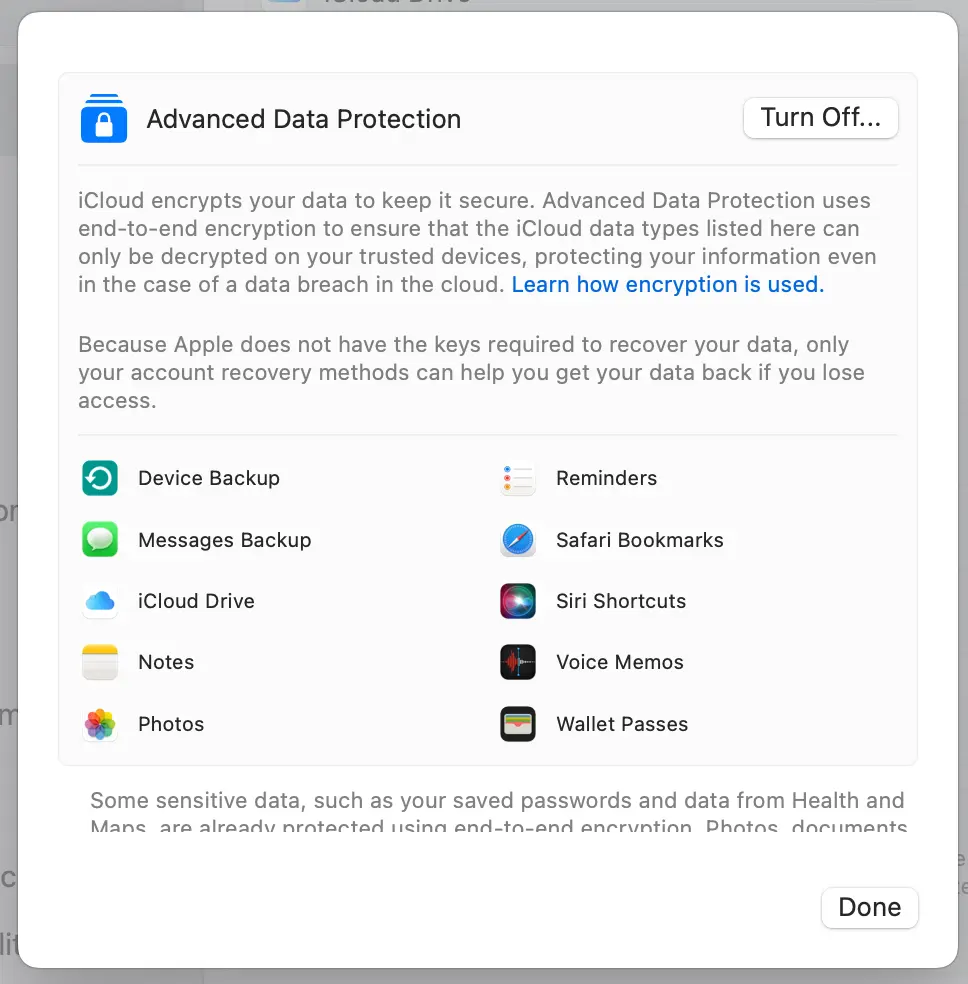
If you’re unable to turn on Advanced Data Protection for a certain period of time, the onscreen instructions may provide more details.
- Choose Apple menu > System Settings.
- Click your name, then click iCloud.
- Click Advanced Data Protection, then click Turn On.
- Follow the onscreen instructions to review your recovery methods and enable Advanced Data Protection.
Prepare Disk
Yes, it takes a day, but good security is worth the wait.
Open Disk Utility: Go to 'Applications' > 'Utilities' > 'Disk Utility'.
Choose Drive: Select the drive you want to erase.
Erase it, Comrade: Click 'Erase', then under 'Security Options,' choose the most secure erase method.
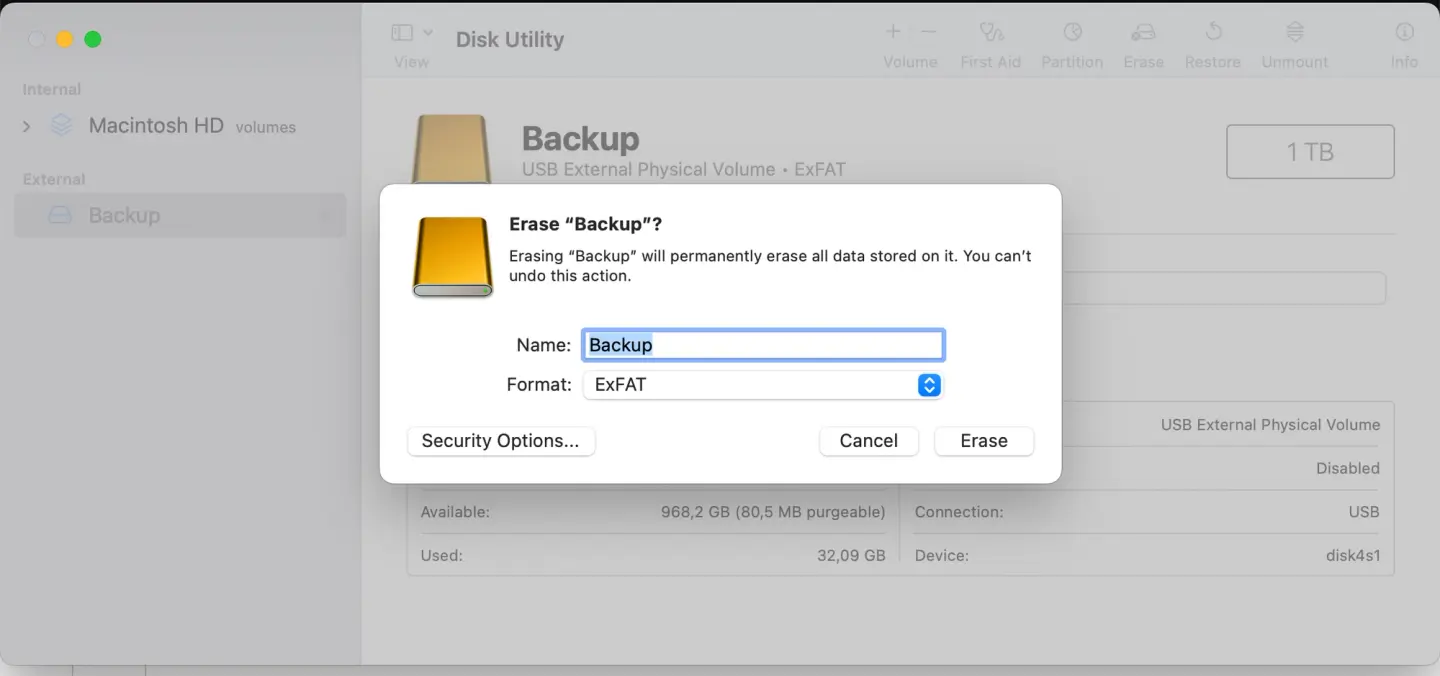
Mind some errors may appear.
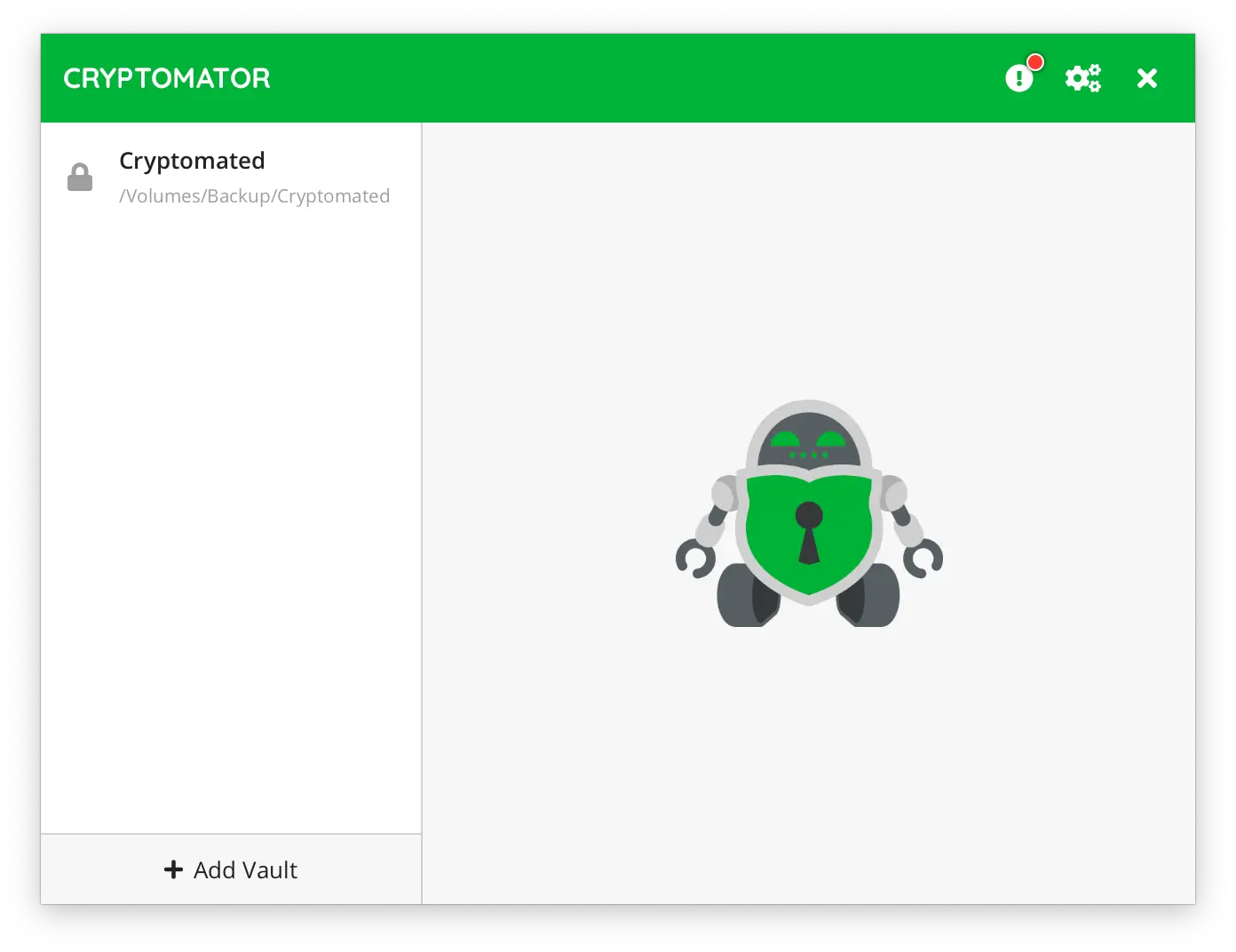
Install Cryptomator: Download and install this gem.
Create a Vault: Open Cryptomator, choose 'Create New Vault,' and give it a cool hacker name.
Unlock: Drag your files in there, and lock it when you're done.
Passwords
- Utilize open-source password managers, such as KeePassXC.
- Export all your passwords from browsers and import them into your chosen manager.
Export from Safari
- Open Safari.
- Click on "Preferences" > "Passwords."
- Enter your Mac password to view saved passwords.
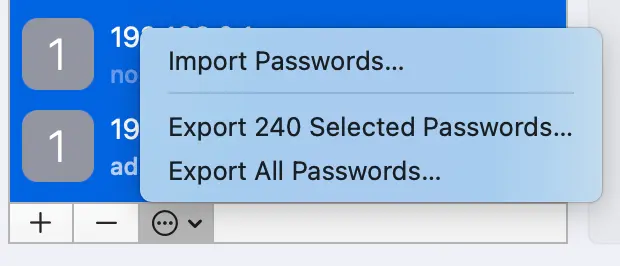
- Select the passwords you want to export, or select all.
- Click on three dots icon and choose "Export".
Import into KeePassXC
Create a secure offline backup on encrypted USB drives. Keep it somewhere safe, perhaps next to your vodka stash.
- Open KeePassXC.
- Click on "Database" > "Import" > "CSV."
- Navigate to the CSV file you've created, select it, and follow the on-screen instructions to import the passwords. Match columns.
Photos
- Change the storage format to keep original files on your Mac. Go to "Photos" > "Preferences" > "iCloud" and select "Download Originals to this Mac."
- Open the Photos app on your Mac.
- Zoom out the library so you can see all your files.
- Select all files (you can use the Command + A shortcut).
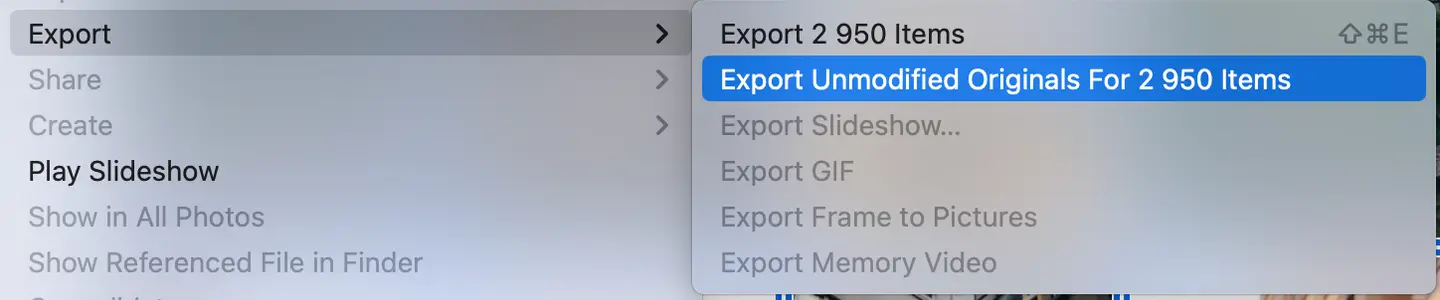
- Click "File" > "Export" > "Export Unmodified Original."
- Choose your desired format and location to export.
- Store copies on external hard drives, protected like the secrets of a Siberian mastermind.
Contacts
- Open Contacts, select the list of your allies and connections.
- Go to "File" > "Export" > "Export vCard."Now they are with you, always.
Documents, Notes, Books
Just copy iCloud folder to external drive.
Music and Rest
- Open Music.
- Select all files, like gathering the family at the dinner table.
- Click "File" > "Library" > "Export Library.".
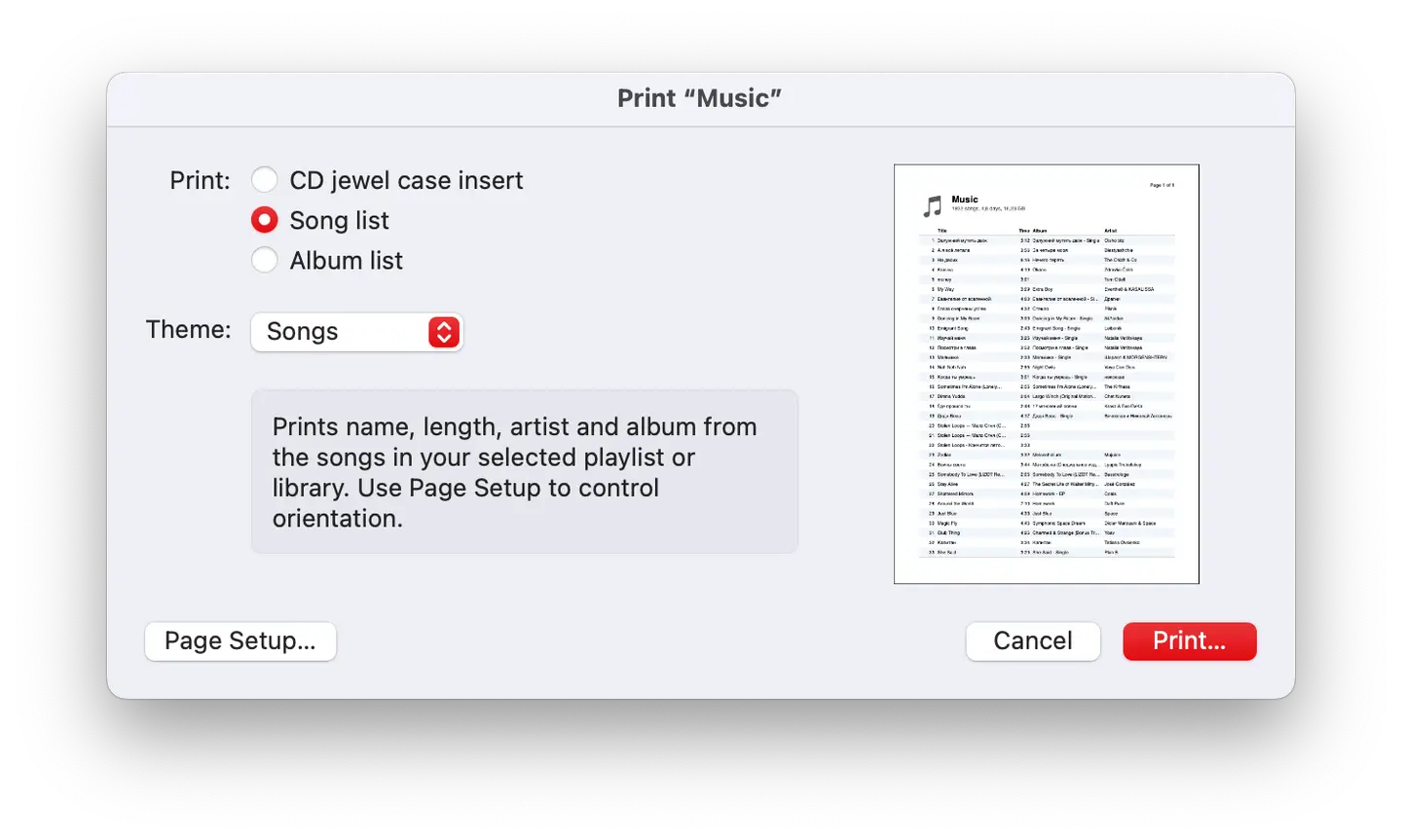
- Click on "File" > " Print". In the print dialog, select "Save as PDF." They’re now protected, like the boss's reputation.
Conclusion
Nice job, you're now untouchable. But remember, we stand stronger together. Governments and corporations want to divide and conquer. Don't let them. Stay vigilant, stay united, and most of all, keep your own counsel. Got it? Now go and be free, comrade.